
Block Definition Diagram
This content is for v4. Switch to the latest version for up-to-date documentation.
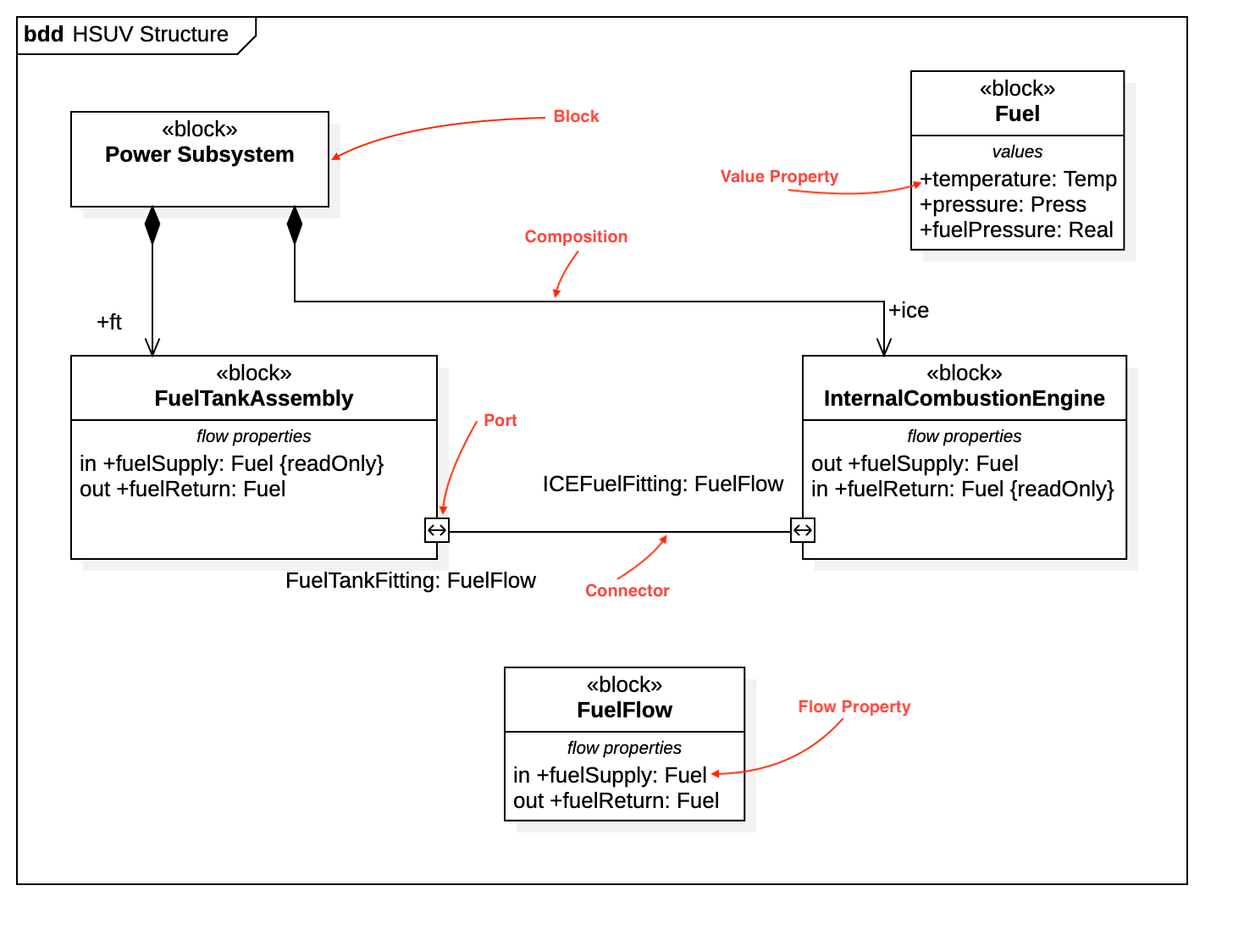
Create Block Definition Diagram
Section titled “Create Block Definition Diagram”To create a Block Definition Diagram:
- Select first an element where a new Block Definition Diagram to be contained as a child.
- Select Model | Add Diagram | Block Definition Diagram in Menu Bar or select Add Diagram | Block Definition Diagram in Context Menu.
To create a Block:
- Select Block in Toolbox.
- Drag on the diagram as the size you want.
To create a Block (model element only) by Menu:
- Select an Element where a new Block to be contained.
- Select Model | Add | Block in Menu Bar or Add | Block in Context Menu.
You can use QuickEdit for Block by double-click or press Enter on a selected Block.
-
Name Expression : Edit name expression.
Syntax of Name Expression
expression ::= [ '<<' stereotype `>>` ] [ visibility ] namestereotype ::= (identifier)visibility ::= '+' | '#' | '-' | '~'name ::= (identifier) -
Visibility : Change visibility property.
-
Add Note : Add a linked note.
-
Add Constraint : Add a constraint.
-
Add Part : Add a part property.
-
Add Reference : Add a reference property.
-
Add Value : Add a value property (typed by ValueType).
-
Add Flow Property : Add a flow property.
-
Add Constraint Property : Add a constraint property.
-
Add Property : Add a property.
-
Add Operation : Add an operation.
-
Add Reception : Add a reception.
-
Add Port : Add a port.
-
Add Composited Block : Add a composited block.
To suppress Constraint Properties, check (or uncheck) Format | Suppress Constraints in Menu Bar or Context Menu.
To suppress Part Properties, check (or uncheck) Format | Suppress Parts in Menu Bar or Context Menu.
To suppress Port Properties, check (or uncheck) Format | Suppress Ports in Menu Bar or Context Menu.
To suppress Reference Properties, check (or uncheck) Format | Suppress References in Menu Bar or Context Menu.
To suppress Values Properties, check (or uncheck) Format | Suppress Values in Menu Bar or Context Menu.
To suppress Properties, check (or uncheck) Format | Suppress Properties in Menu Bar or Context Menu.
To suppress Flow Properties, check (or uncheck) Format | Suppress Flow Properties in Menu Bar or Context Menu.
Value Type
Section titled “Value Type”To create a Value Type:
- Select Value Type in Toolbox.
- Drag on the diagram as the size you want.
To create a Value Type (model element only) by Menu:
- Select an Element where a new Value Type to be contained.
- Select Model | Add | Value Type in Menu Bar or Add | Value Type in Context Menu.
You can use QuickEdit for Value Type by double-click or press Enter on a selected Value Type.
-
Name Expression : Edit name expression.
Syntax of Name Expression
expression ::= [ '<<' stereotype `>>` ] [ visibility ] namestereotype ::= (identifier)visibility ::= '+' | '#' | '-' | '~'name ::= (identifier) -
Visibility : Change visibility property.
-
Add Note : Add a linked note.
-
Add Constraint : Add a constraint.
-
Add Attribute : Add an attribute.
-
Add Operation : Add an operation.
-
Add Reception : Add a reception.
To suppress Property Values, check (or uncheck) Format | Suppress Property Values in Menu Bar or Context Menu.
To suppress Attributes, check (or uncheck) Format | Suppress Attributes in Menu Bar or Context Menu.
To suppress Operations, check (or uncheck) Format | Suppress Operations in Menu Bar or Context Menu.
To suppress Receptions, check (or uncheck) Format | Suppress Receptions in Menu Bar or Context Menu.
Interface Block
Section titled “Interface Block”To create a Interface Block:
- Select Interface Block in Toolbox.
- Drag on the diagram as the size you want.
To create a Interface Block (model element only) by Menu:
- Select an Element where a new Interface Block to be contained.
- Select Model | Add | Interface Block in Menu Bar or Add | Interface Block in Context Menu.
You can use the same QuickEdit for Block by double-click or press Enter on the selected Interface Block.
Constraint Block
Section titled “Constraint Block”To create a Constraint Block:
- Select Constraint Block in Toolbox.
- Drag on the diagram as the size you want.
To create a Constraint Block (model element only) by Menu:
- Select an Element where a new Constraint Block to be contained.
- Select Model | Add | Constraint Block in Menu Bar or Add | Constraint Block in Context Menu.
You can use QuickEdit for Constraint Block by double-click or press Enter on a selected Constraint Block.
-
Name Expression : Edit name expression.
Syntax of Name Expression
expression ::= [ '<<' stereotype `>>` ] [ visibility ] namestereotype ::= (identifier)visibility ::= '+' | '#' | '-' | '~'name ::= (identifier) -
Visibility : Change visibility property.
-
Add Note : Add a linked note.
-
Add Constraint : Add a constraint.
-
Add Parameter : Add a constraint parameter.
To suppress Constraint Properties, check (or uncheck) Format | Suppress Constraints in Menu Bar or Context Menu.
To suppress Constraint Parameters, check (or uncheck) Format | Suppress Properties in Menu Bar or Context Menu.
To create a Port:
- Select Port in Toolbox.
- Click on the element (e.g. Class) where Port to be contained.
To create a Port (model element only) by Menu:
- Select an Element where a new Port to be contained.
- Select Model | Add | Port in Menu Bar or Add | Port in Context Menu.
You can use QuickEdit for Port by double-click or press Enter on a selected Port.
-
Name Expression : Edit name expression.
Syntax of Name Expression
expression ::= [ '<<' stereotype `>>` ] [ visibility ] namestereotype ::= (identifier)visibility ::= '+' | '#' | '-' | '~'name ::= (identifier) -
Visibility : Change visibility property.
-
Add Note : Add a linked note.
-
Add Constraint : Add a constraint.
-
Select Block : Select a Block and assign it to type property.
-
Create Block : Create a Block and assign it to type property.
-
Add Provided Interface : Add a provided interface.
-
Add Required Interface : Add a required interface.
Object
Section titled “Object”See Object in Object Diagram.
Connector
Section titled “Connector”To create an Connector:
- Select Connector in Toolbox.
- Drag from an element (e.g. Port) and drop on another element (e.g. Part).
You can use QuickEdit for Connector by double-click or press Enter on a selected Connector.
- Name Expression : Edit name expression.
- Visibility : Change visibility property.
- Add Note : Add a linked note.
- Add Constraint : Add a constraint.
- Create Item Flow : Create an Item Flow. The both Ports (or Parts) should be typed to create an Item Flow.