
Statechart Diagram
This content is for v4. Switch to the latest version for up-to-date documentation.
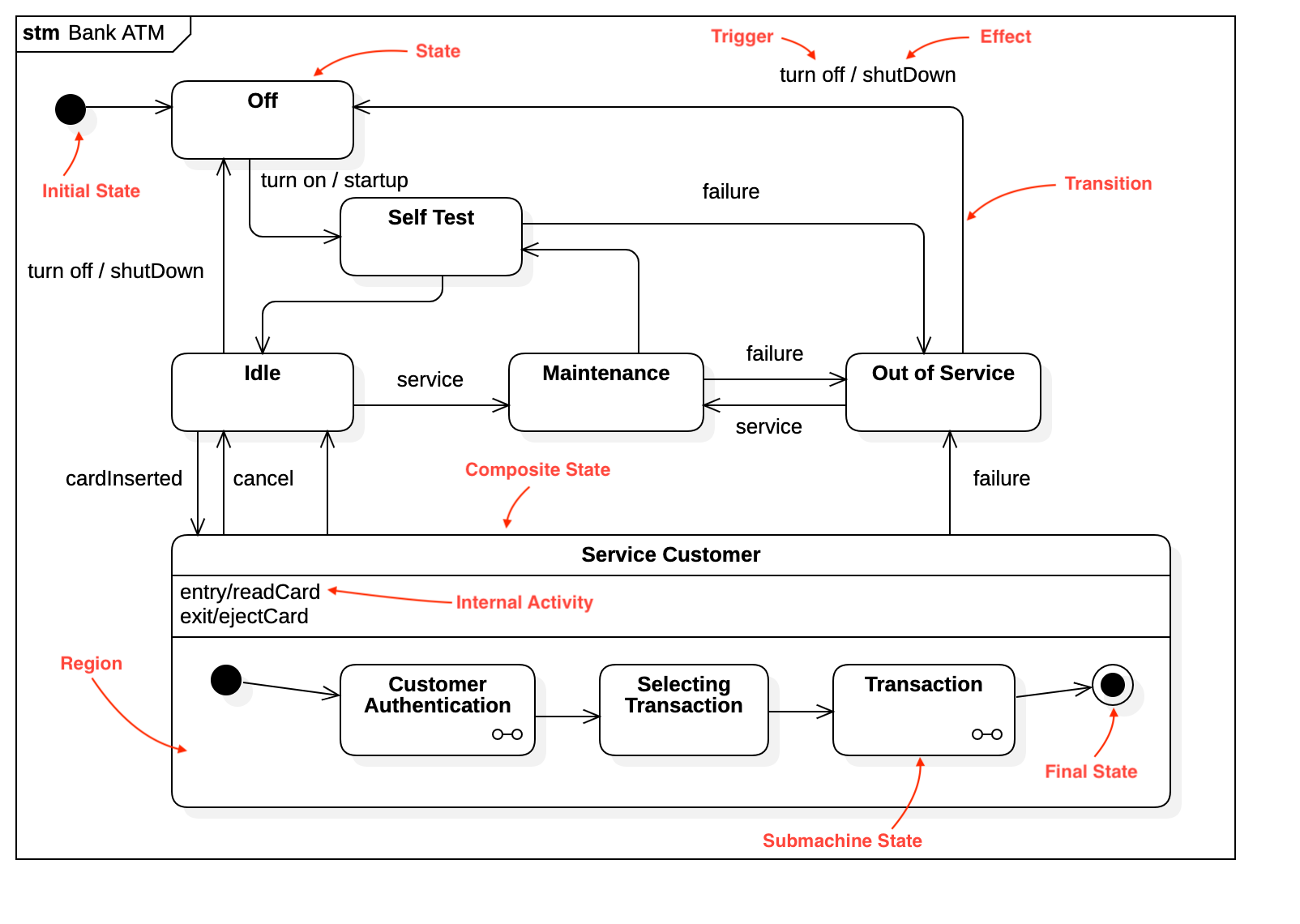
Create Statechart Diagram
Section titled “Create Statechart Diagram”To create a Statechart Diagram:
- Select first an element where a new Statechart Diagram to be contained as a child.
- Select Model | Add Diagram | Statechart Diagram in Menu Bar or select Add Diagram | Statechart Diagram in Context Menu.
See also
UML Statechart Diagram - For more information about UML Statechart Diagram.
To create a Simple State:
- Select Simple State in Toolbox.
- Drag on the diagram as the size of Simple State.
To create a Composite State:
- Select Composite State in Toolbox.
- Drag on the diagram as the size of Composite State.
To create a Submachine State:
- Select Submachine State in Toolbox.
- Drag on the diagram as the size of Submachine State.
- Select a StateMachine in Element Picker Dialog.
To create an Orthogonal State:
- Select Orthogonal State in Toolbox.
- Drag on the diagram as the size of Orthogonal State.
You can use QuickEdit for State by double-click or press Enter on a selected State.
-
Name Expression : Edit name expression.
Syntax of Name Expression
expression ::= [ '<<' stereotype `>>` ] [ visibility ] namestereotype ::= (identifier)visibility ::= '+' | '#' | '-' | '~'name ::= (identifier) -
Add ConnectionPointReference : Add a connection point reference.
-
Add Region : Add a region.
-
Add Note : Add a linked note.
-
Add Constraint : Add a constraint.
-
Add Entry Activity : Add an entry activity.
-
Add Do Activity : Add an do activity.
-
Add Exit Activity : Add an exit activity.
-
Add Internal Transition : Add an internal transition.
Internal Activity
Section titled “Internal Activity”To add an Entry Activity:
- Select a State.
- Select Model | Add | Entry Activity in Menu Bar or Add | Entry Activity in Context Menu.
- Select a kind of Activity to create (one of OpaqueBehavior, Activity, StateMachine, or Interaction).
To add a Do Activity:
- Select a State.
- Select Model | Add | Do Activity in Menu Bar or Add | Do Activity in Context Menu.
- Select a kind of Activity to create (one of OpaqueBehavior, Activity, StateMachine, or Interaction).
To add an Exit Activity:
- Select a State.
- Select Model | Add | Exit Activity in Menu Bar or Add | Exit Activity in Context Menu.
- Select a kind of Activity to create (one of OpaqueBehavior, Activity, StateMachine, or Interaction).
You can use QuickEdit for Model Element (See Model Element).
Internal Transition
Section titled “Internal Transition”To add an Internal Transition:
- Select a State.
- Popup Quic Edit for State by double click or press
Enteron a selected State. - Select Add Internal Transition button in Quick Edit.
You can use QuickEdit for Internal Transition by double-click or press Enter on a selected Internal Transition.
-
Name Expression : Edit name expression.
Syntax of Name Expression
expression ::= [ '<<' stereotype `>>` ] [ visibility ] namestereotype ::= (identifier)visibility ::= '+' | '#' | '-' | '~'name ::= (identifier) -
Add Trigger Event : Add a trigger event.
-
Add Effect Behavior : Add an effect behavior.
Region
Section titled “Region”To add a Region:
- Select a State.
- Select Model | Add | Region in Menu Bar or Add | Region in Context Menu.
Initial State
Section titled “Initial State”To create a Initial State:
- Select Initial State in Toolbox.
- Click at the position on the diagram.
You can use QuickEdit for Model Element (See Model Element).
Choice
Section titled “Choice”To create a Choice:
- Select Choice in Toolbox.
- Click at the position on the diagram.
You can use QuickEdit for Model Element (See Model Element).
To create a Join:
- Select Join in Toolbox.
- Drag on the diagram as the size of Join.
You can use QuickEdit for Model Element (See Model Element).
To create a Fork:
- Select Fork in Toolbox.
- Drag on the diagram as the size of Fork.
You can use QuickEdit for Model Element (See Model Element).
Junction
Section titled “Junction”To create a Junction:
- Select Junction in Toolbox.
- Click at the position on the diagram.
You can use QuickEdit for Model Element (See Model Element).
Shallow History
Section titled “Shallow History”To create a Shallow History:
- Select Shallow History in Toolbox.
- Click at the position on the diagram.
You can use QuickEdit for Model Element (See Model Element).
Deep History
Section titled “Deep History”To create a Deep History:
- Select Deep History in Toolbox.
- Click at the position on the diagram.
You can use QuickEdit for Model Element (See Model Element).
Entry Point
Section titled “Entry Point”To create a Entry Point:
- Select Entry Point in Toolbox.
- Click at the position on the diagram.
You can use QuickEdit for Model Element (See Model Element).
Exit Point
Section titled “Exit Point”To create a Exit Point:
- Select Exit Point in Toolbox.
- Click at the position on the diagram.
You can use QuickEdit for Model Element (See Model Element).
Terminate
Section titled “Terminate”To create a Terminate:
- Select Terminate in Toolbox.
- Click at the position on the diagram.
You can use QuickEdit for Model Element (See Model Element).
Final State
Section titled “Final State”To create a Final State:
- Select Final State in Toolbox.
- Click at the position on the diagram.
You can use QuickEdit for Model Element (See Model Element).
Connection Point Reference
Section titled “Connection Point Reference”To create a Connection Point Reference:
- Select Connection Point Reference in Toolbox.
- Click on a State where Connection Point Reference to be contained.
You can use QuickEdit for Model Element (See Model Element).
Transition
Section titled “Transition”To create a Transition (or Self Transition):
- Select Transition (or Self Transition) in Toolbox.
- Drag from a State and drop on another State. (Just click on a State if you want to create a Self Transition.)
You can use QuickEdit for Transition by double-click or press Enter on a selected Transition.
-
Transition Expression : Edit transition expression.
Syntax of Transition Expression
transition ::= [ trigger-list ] [ '[' guard ']' ] [ '/' effect ]trigger-list ::= trigger [ ',' trigger ]trigger ::= (identifier)guard ::= (string)effect ::= (identifier) -
Add Note : Add a linked note.
-
Add Constraint : Add a constraint.
-
Add Trigger Event : Add a trigger event.
-
Add Effect Behavior : Add an effect behavior.