
Object Diagram
This content is for v4. Switch to the latest version for up-to-date documentation.
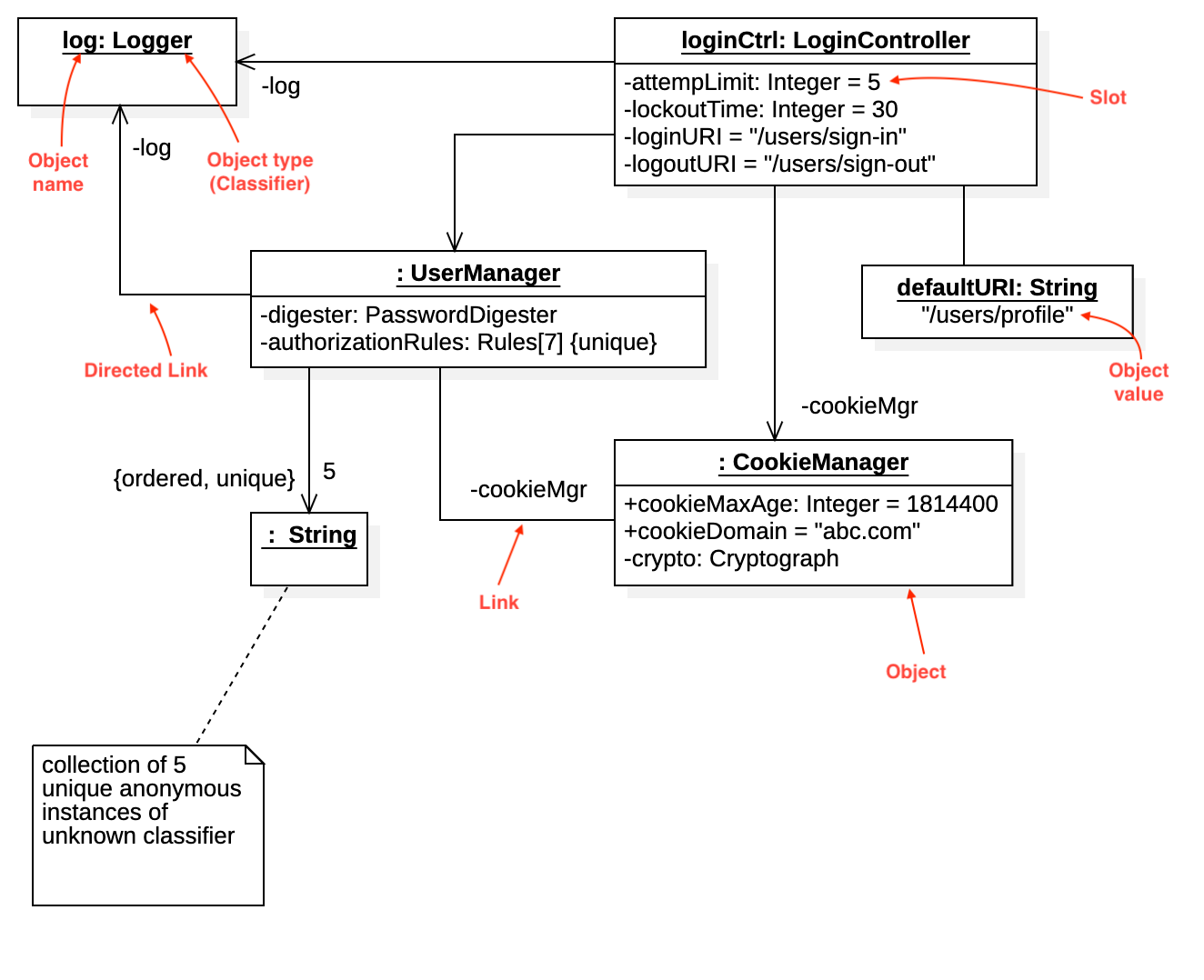
Create Object Diagram
Section titled “Create Object Diagram”To create a Object Diagram:
- Select first an element where a new Object Diagram to be contained as a child.
- Select Model | Add Diagram | Object Diagram in Menu Bar or select Add Diagram | Object Diagram in Context Menu.
See also
UML Object Diagram - For more information about UML Object Diagram.
Object
Section titled “Object”To create a Object:
- Select Object in Toolbox.
- Drag on the diagram as the size of Object.
You can use QuickEdit for Object by double-click or press Enter on a selected Object.
-
Name Expression : Edit name expression.
Syntax of Name Expression
expression ::= [ '<<' stereotype `>>` ] [ visibility ] namestereotype ::= (identifier)visibility ::= '+' | '#' | '-' | '~'name ::= (identifier) -
Visibility : Change visibility property.
-
Add Note : Add a linked note.
-
Add Constraint : Add a constraint.
-
Add Slot (
Ctrl+Enter) : Add a slot. -
Add Linked Object : Add a linked object.
To add an Slot:
- Select an Instance.
- Select Model | Add | Slot in Menu Bar or Add | Slot in Context Menu.
You can use QuickEdit for Slot by double-click or press Enter on a selected Slot.
-
Slot Expression : Edit Slot expression.
Syntax of Slot Expression
slot ::= [ '<<' stereotype `>>` ] [ visibility ] name [':' type ] [ '=' value ]stereotype ::= (identifier)visibility ::= '+' | '#' | '-' | '~'name ::= (identifier)type ::= (identifier)value ::= (string) -
Visibility : Change visibility property.
-
Add (
Ctrl+Enter) : Add one more slot in the below. -
Delete (
Ctrl+Delete) : Delete the slot -
Move Up (
Ctrl+Up) : Move the slot up. -
Move Down (
Ctrl+Down) : Move the slot down.
Artifact Instance
Section titled “Artifact Instance”To create a Artifact Instance:
- Select Artifact Instance in Toolbox.
- Drag on the diagram as the size of Artifact Instance.
You can use QuickEdit for Model Element (See Model Element).
Component Instance
Section titled “Component Instance”To create a Component Instance:
- Select Component Instance in Toolbox.
- Drag on the diagram as the size of Component Instance.
You can use QuickEdit for Model Element (See Model Element).
Node Instance
Section titled “Node Instance”To create a Node Instance:
- Select Node Instance in Toolbox.
- Drag on the diagram as the size of Node Instance.
You can use QuickEdit for Model Element (See Model Element).
To create an Link (or Directed Link):
- Select Link (or Directed Link) in Toolbox.
- Drag from an instance and drop on another instance.
You can use QuickEdit for Relationship (See Relationship).
You can also use QuickEdit for LinkEnd by double-click at the end side of an Link.
-
Name Expression : Edit name expression.
Syntax of Name Expression
expression ::= [ '<<' stereotype `>>` ] [ visibility ] namestereotype ::= (identifier)visibility ::= '+' | '#' | '-' | '~'name ::= (identifier) -
Visibility : Change visibility property.
-
Navigability : Change navigability property.
-
Aggregation Kind : Change aggregationKind property.
-
Multiplicity : Change multiplicity property.