
Data Flow Diagram
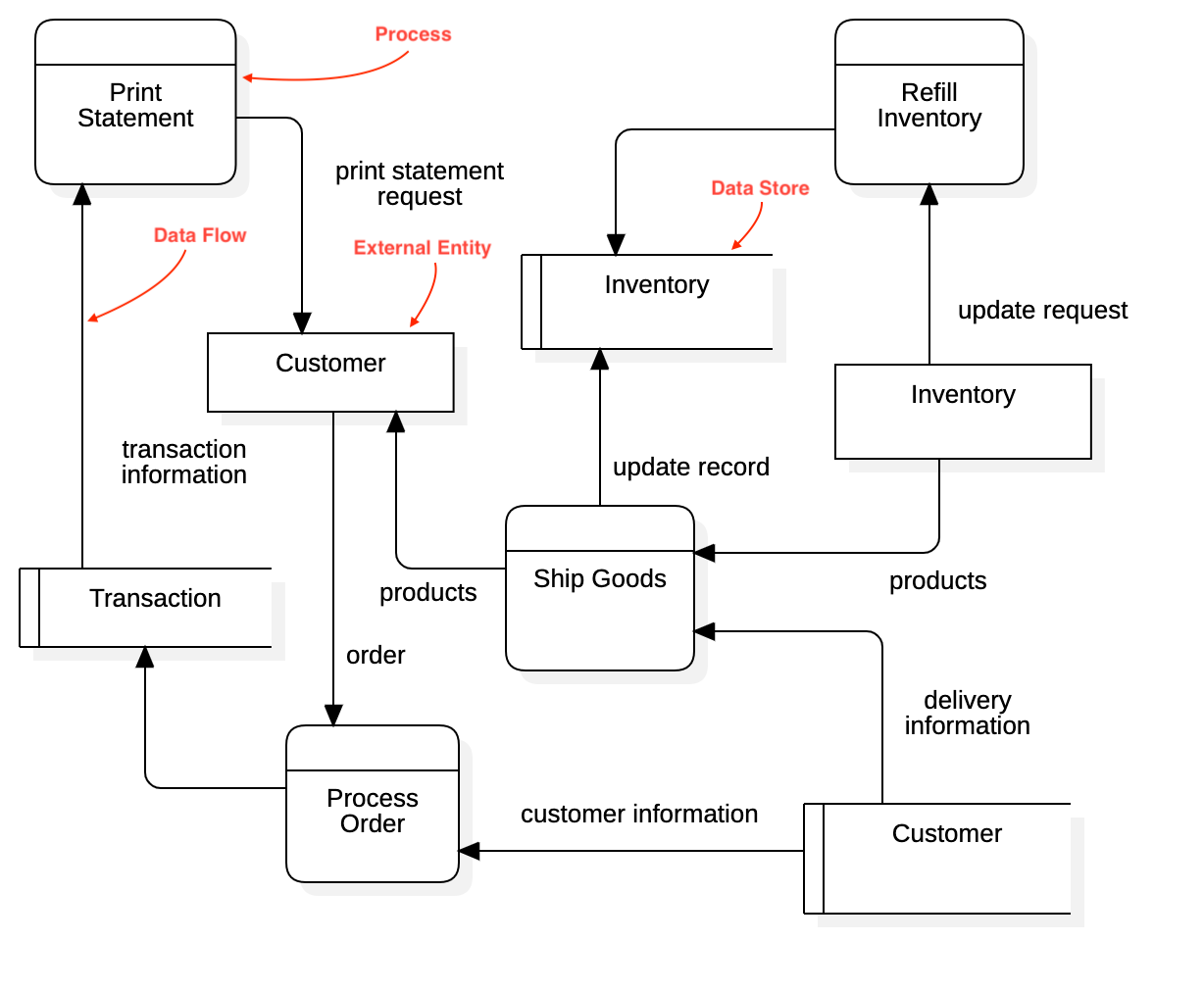
Create Data Flow Diagram
Section titled “Create Data Flow Diagram”To create a Data Flow Diagram:
- Select first an element where a new Data Flow Diagram to be contained as a child.
- Select Model | Add Diagram | Data Flow Diagram in Menu Bar or select Add Diagram | Data Flow Diagram in Context Menu.
Data Flow Model
Section titled “Data Flow Model”To create a Data Flow Model (model element only) by Menu:
- Select an Element where a new Data Flow Model to be contained.
- Select Model | Add | Data Flow Model in Menu Bar or Add | Data Flow Model in Context Menu.
External Entity
Section titled “External Entity”To create an External Entity:
- Select External Entity in Toolbox.
- Drag on the diagram as the size of External Entity.
You can use QuickEdit for External Entity by double-click or press Enter on a selected External Entity.
- Name : Edit name.
- Add Note : Add a linked note.
- Add Outgoing Process : Add an outgoing data flow with a process.
Process
Section titled “Process”To create a Process:
- Select Process in Toolbox.
- Drag on the diagram as the size of Process.
You can use QuickEdit for Process by double-click or press Enter on a selected Process.
- Name : Edit name.
- Add Note : Add a linked note.
- Add Incoming External Entity : Add an incoming data flow with an external entity.
- Add Outgoing Process : Add an outgoing data flow with a process.
- Add Outgoing Datastore : Add an outgoing data flow with a datastore.
Datastore
Section titled “Datastore”To create a Datastore:
- Select Datastore in Toolbox.
- Drag on the diagram as the size of Datastore.
You can use QuickEdit for Datastore by double-click or press Enter on a selected Datastore.
- Name : Edit name.
- Add Note : Add a linked note.
- Add Incoming Process : Add an incoming data flow with a process.
Data Flow
Section titled “Data Flow”To create a Data Flow:
- Select Data Flow in Toolbox.
- Drag from an element and drop on another element.
You can use QuickEdit by double-click or press Enter on a selected data flow.
- Name : Edit name.
- Add Note : Add a linked note.