
Timing Diagram
Create Timing Diagram
Section titled “Create Timing Diagram”To create a Timing Diagram:
- Select first an element where a new Timing Diagram to be contained as a child.
- Select Model | Add Diagram | Timing Diagram in Menu Bar or select Add Diagram | Timing Diagram in Context Menu.
See also
UML Timing Diagram - For more information about UML Timing Diagram.
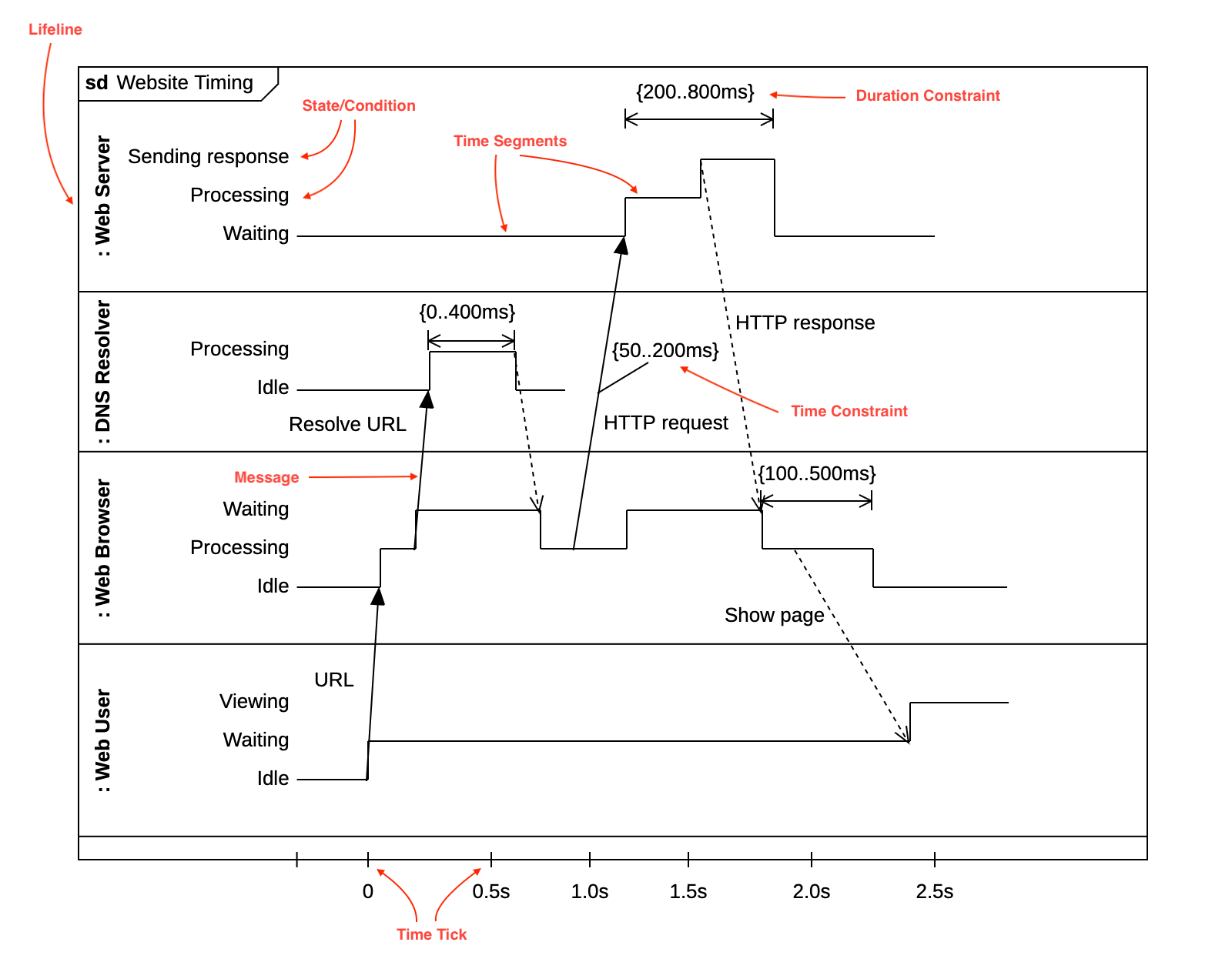
Lifeline
Section titled “Lifeline”To create a Lifeline:
- Select Lifeline in Toolbox.
- Drag on the diagram as the size of Lifeline.
To create a Lifeline from a Classifier (Class, Interface, etc.) by Drag-and-Drop:
- Drag a Classifier from Explorer.
- Drop on the diagram.
You can use QuickEdit for Lifeline by double-click or press Enter on a selected Lifeline.
- Lifeline Expression : Edit lifeline expression.
- Visibility : Change visibility property.
- Select Type : Select a type of the lifeline.
- Create Type : Create a Class as a type of the lifeline.
- Create State/Condition : Create a State/Condition on the lifeline.
State/Condition
Section titled “State/Condition”To create a State/Condition:
- Select State/Condition in Toolbox.
- Click on a Lifeline on the diagram.
You can use QuickEdit for State/Condition by double-click or press Enter on a selected State/Condition.
- Name Expression : Edit state/condition name.
- Visibility : Change visibility property.
- Create Time Segment : Create a Time Segment on the State/Condition.
Time Segment
Section titled “Time Segment”To create a Time Segment
- Select Time Segment in Toolbox.
- Click on a State/Condition area on the diagram.
Time Tick
Section titled “Time Tick”To create a Time Tick
- Select Time Tick in Toolbox.
- Click on the Timing Diagram Frame area on the diagram.
Time Constraint
Section titled “Time Constraint”To create a Time Constraint
- Select Time Constraint in Toolbox.
- Click on an element (e.g. Message or Time Segment) to attach a time constraint on the diagram.
Duration Constraint
Section titled “Duration Constraint”To create a Duration Constraint
- Select Duration Constraint in Toolbox.
- Drag on the diagram as the size of Duration Constraint.
Message
Section titled “Message”To create a Message:
- Select Message in Toolbox.
- Drag from a Time Segment and drop on another Time Segment.
For more about Message, visit the Message section in Sequence Diagram.