Deployment Diagram
Create Deployment Diagram
Section titled “Create Deployment Diagram”To create a Deployment Diagram:
- Select first an element where a new Deployment Diagram to be contained as a child.
- Select Model | Add Diagram | Deployment Diagram in Menu Bar or select Add Diagram | Deployment Diagram in Context Menu.
See also
UML Deployment Diagram - For more information about UML Deployment Diagram.
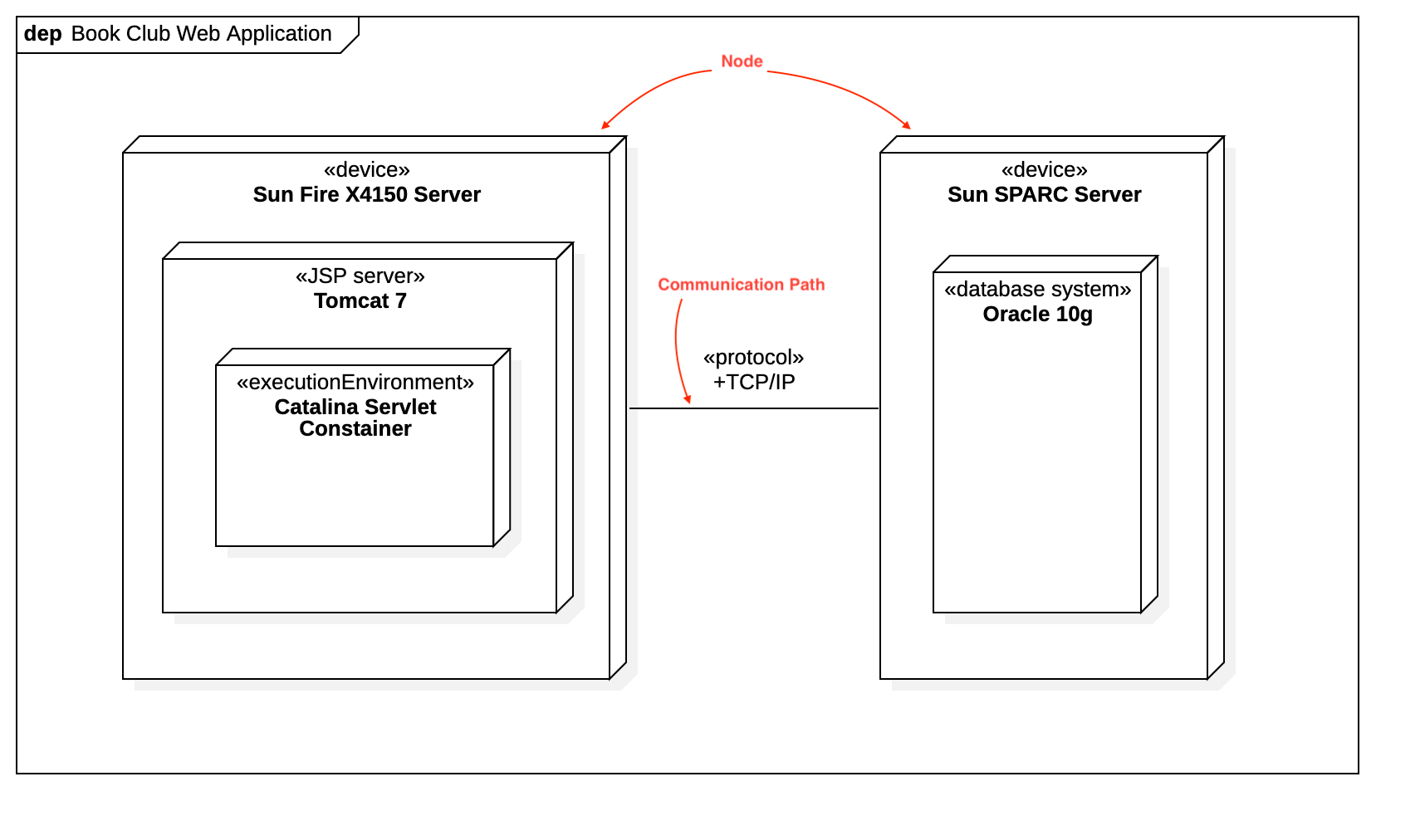
To create a Node:
- Select Node in Toolbox.
- Drag on the diagram as the size of Node.
To create a Node (model element only) by Menu:
- Select an Element where a new Node to be contained.
- Select Model | Add | Node in Menu Bar or Add | Node in Context Menu.
You can use QuickEdit for Node by double-click or press Enter on a selected Node.
-
Name Expression : Edit name expression.
Syntax of Name Expression
expression ::= [ '<<' stereotype `>>` ] [ visibility ] namestereotype ::= (identifier)visibility ::= '+' | '#' | '-' | '~'name ::= (identifier) -
Visibility : Change visibility property.
-
Add Note : Add a linked note.
-
Add Constraint : Add a constraint.
-
Add Attribute (
Ctrl+Enter) : Add an attribute. -
Add Operation (
Ctrl+Shift+Enter) : Add an operation. -
Add Reception : Add a reception.
-
Add Communicating Node : Add a communicating node.
-
Add Deployed Component : Add a deployed component.
-
Add Deployed Artifact : Add a deployed artifact.
To suppress Attributes, see Suppress Attributes.
To suppress Operations, see Suppress Operations.
To show or hide Operation Signatures, see Show Operation Signature.
Deployment
Section titled “Deployment”To create an Deployment:
- Select Deployment in Toolbox.
- Drag from an element (to be deployed) and drop on a Node.
You can use QuickEdit for Relationship (See Relationship).
Communication Path
Section titled “Communication Path”To create an Communication Path:
- Select Communication Path in Toolbox.
- Drag from a Node and drop on another Node.
You can use QuickEdit for Association (See Association).