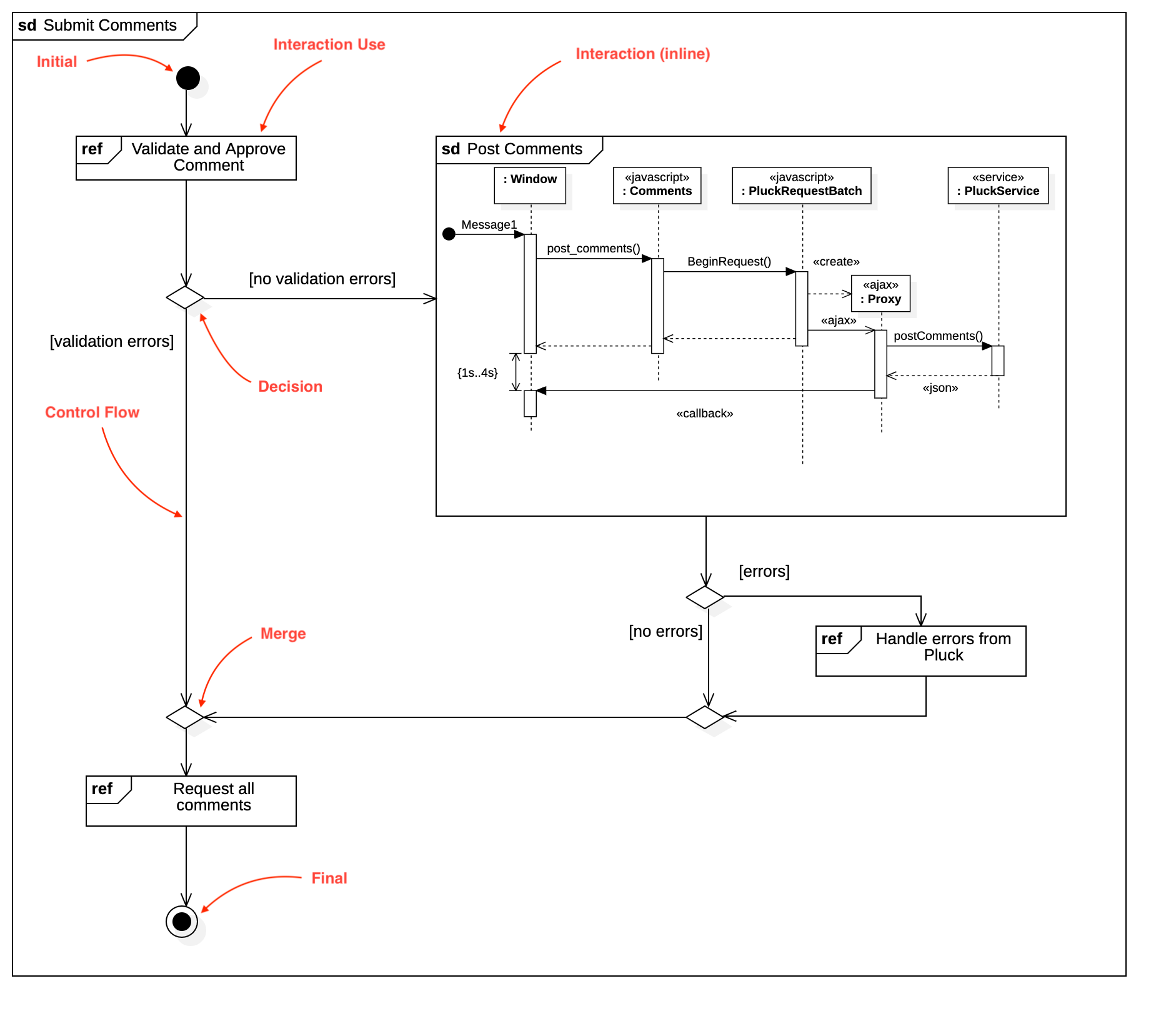
Interaction Overview Diagram
Create Interaction Overview Diagram
Section titled “Create Interaction Overview Diagram”To create an Interaction Overview Diagram:
- Select first an element where a new Interaction Overview Diagram to be contained as a child.
- Select Model | Add Diagram | Interaction Overview Diagram in Menu Bar or select Add Diagram | Interaction Overview Diagram in Context Menu.
See also
UML Interaction Overview Diagram - For more information about UML Interaction Overview Diagram
Note that Interaction Overview Diagram is a kind of Activity Diagram, so all nodes are activity nodes and all edges are activity edges.
Interaction Use
Section titled “Interaction Use”To create a Interaction Use node:
- Select Interaction Use in Toolbox.
- Drag on the diagram as the size of Interaction Use.
You can also create an Interaction Use node by drag and drop an existing Interaction Use from Model Explorer.
Double-clicking the node will select the corresponding Interaction Use element in Model Explorer.
Interaction (inline)
Section titled “Interaction (inline)”To create a Interaction (inline) node:
- Select Interaction (Inline) in Toolbox.
- Drag on the diagram as the size of Interaction.
Creating an Interaction (inline) node will also create a new Sequence Diagram. The sequence diagram is shown inside the Interaction Frame.
To edit the sequence diagram inside, double-click the Interaction Frame.
You can also create Interaction (inline) node by drag and drop an existing Sequence Diagram from Model Explorer.
Initial
Section titled “Initial”To create an Initial node:
- Select Initial in Toolbox.
- Click at the position on the diagram.
To create a Final node:
- Select Final in Toolbox.
- Click at the position on the diagram.
To create a Fork node:
- Select Fork in Toolbox.
- Drag on the diagram as the size of Fork.
To create a Join node:
- Select Join in Toolbox.
- Drag on the diagram as the size of Join.
To create a Merge node:
- Select Merge in Toolbox.
- Click at the position on the diagram.
Decision
Section titled “Decision”To create a Decision node:
- Select Decision in Toolbox.
- Click at the position on the diagram.
Control Flow
Section titled “Control Flow”To create a Control Flow:
- Select Control Flow in Toolbox.
- Drag from a node and drop on another node.
You can use QuickEdit for Relationship (See Relationship).